

Features
Built around
the way you listen.
A closer look at the actual Soundoper interface on Windows 11.
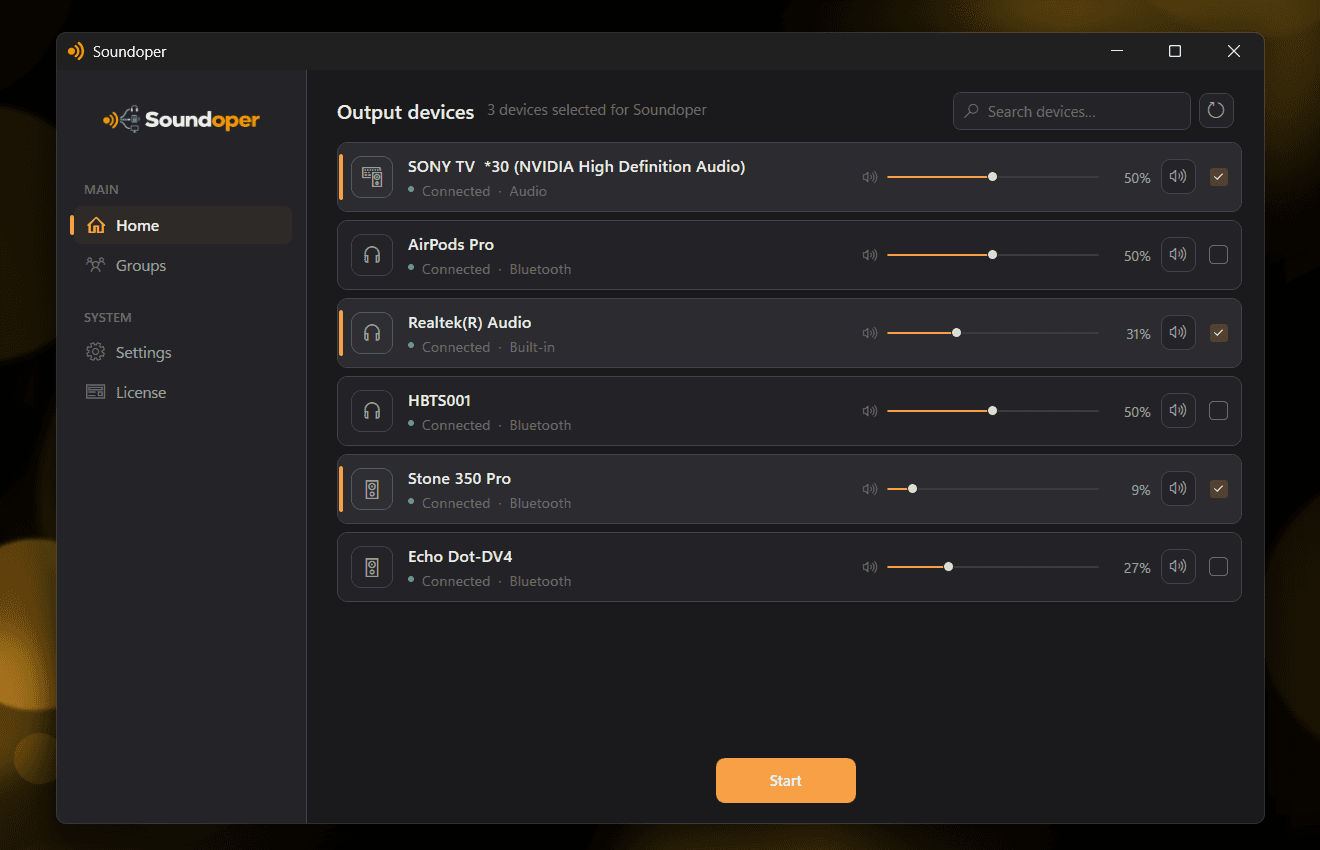
One stream. Multiple devices.
Select multiple connected playback devices and send the same system audio to them at once. Combine wired, USB and display outputs with up to two Bluetooth outputs in the same setup.
Choose devices, adjust individual output levels, mute outputs, and manage the whole listening session from one screen.
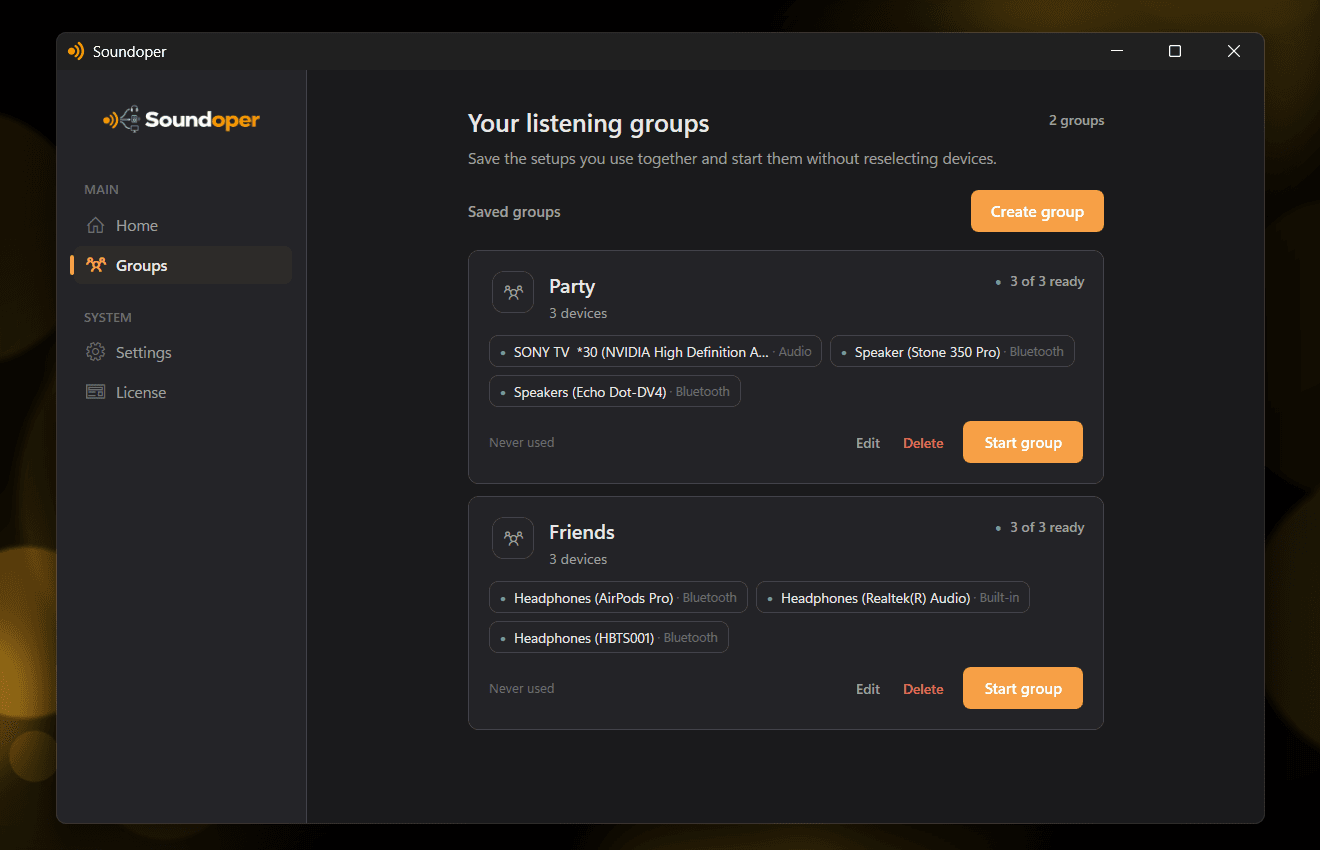
Save the setups you use.
Keep recurring device combinations ready so you can bring a listening setup back without selecting every output again.
Saved groups show which devices are ready and let you start the complete setup directly.
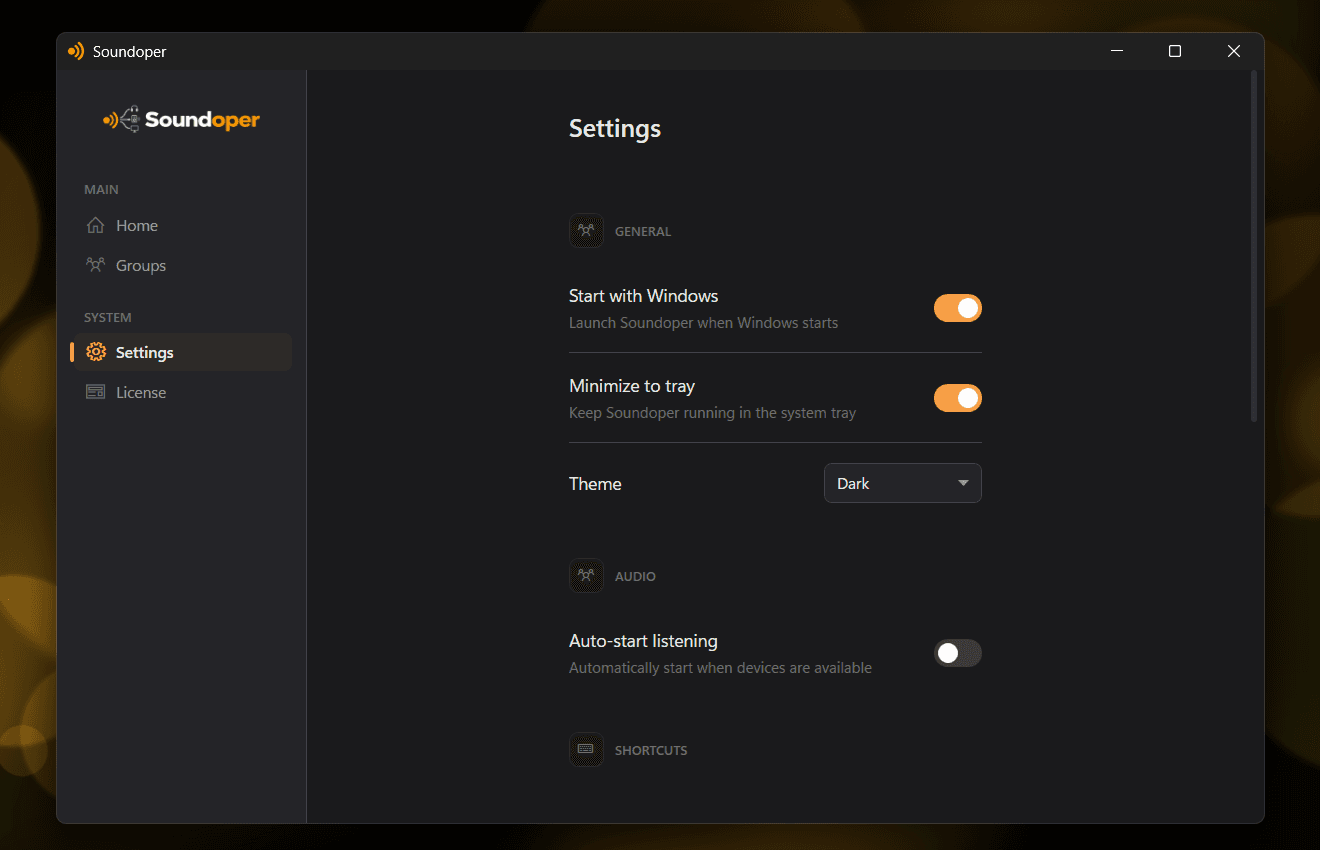
Control how Soundoper behaves.
Manage startup, tray behavior, theme and listening preferences from one focused settings screen.
The controls stay inside Soundoper instead of being scattered across separate configuration windows.
Bring Soundoper back instantly.
Use Win+Alt to open or focus Soundoper from anywhere in Windows.
The shortcut can be enabled or disabled directly from Settings.

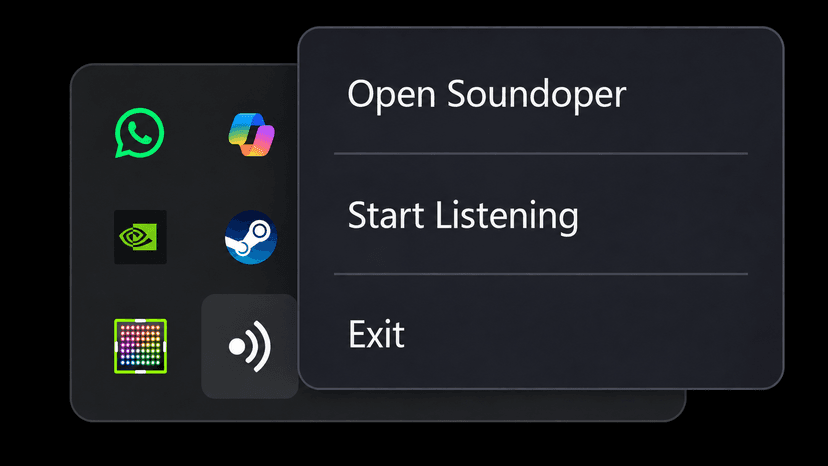
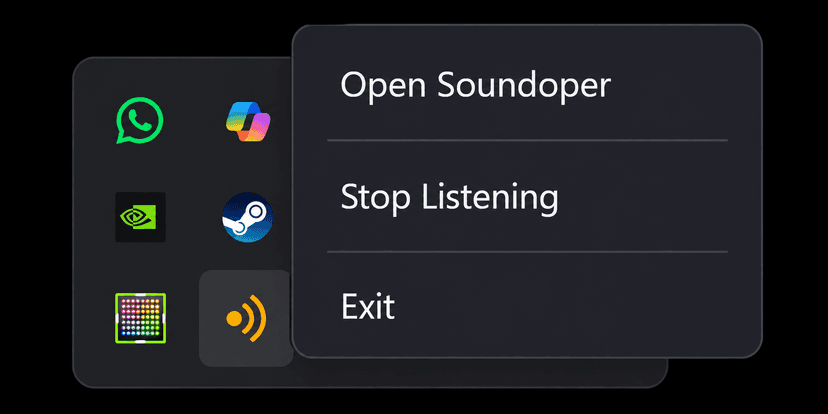
Control listening from the tray.
Keep Soundoper running quietly and start or stop listening without reopening the main window.
The tray menu changes with the current listening state, so the action you need is always right there.
Ready
Listening
Try the real thing
Hear your own setup together.
Download Soundoper for Windows 11 and use the full app during the trial.