

One sound.
Every device.
Play audio through multiple devices on Windows 11 with Soundoper. Route the same system sound to selected speakers, headphones, Bluetooth, USB and display outputs, with per-device controls and saved listening groups.
Full access · no credit card · Windows 11
Soundoper for Windows
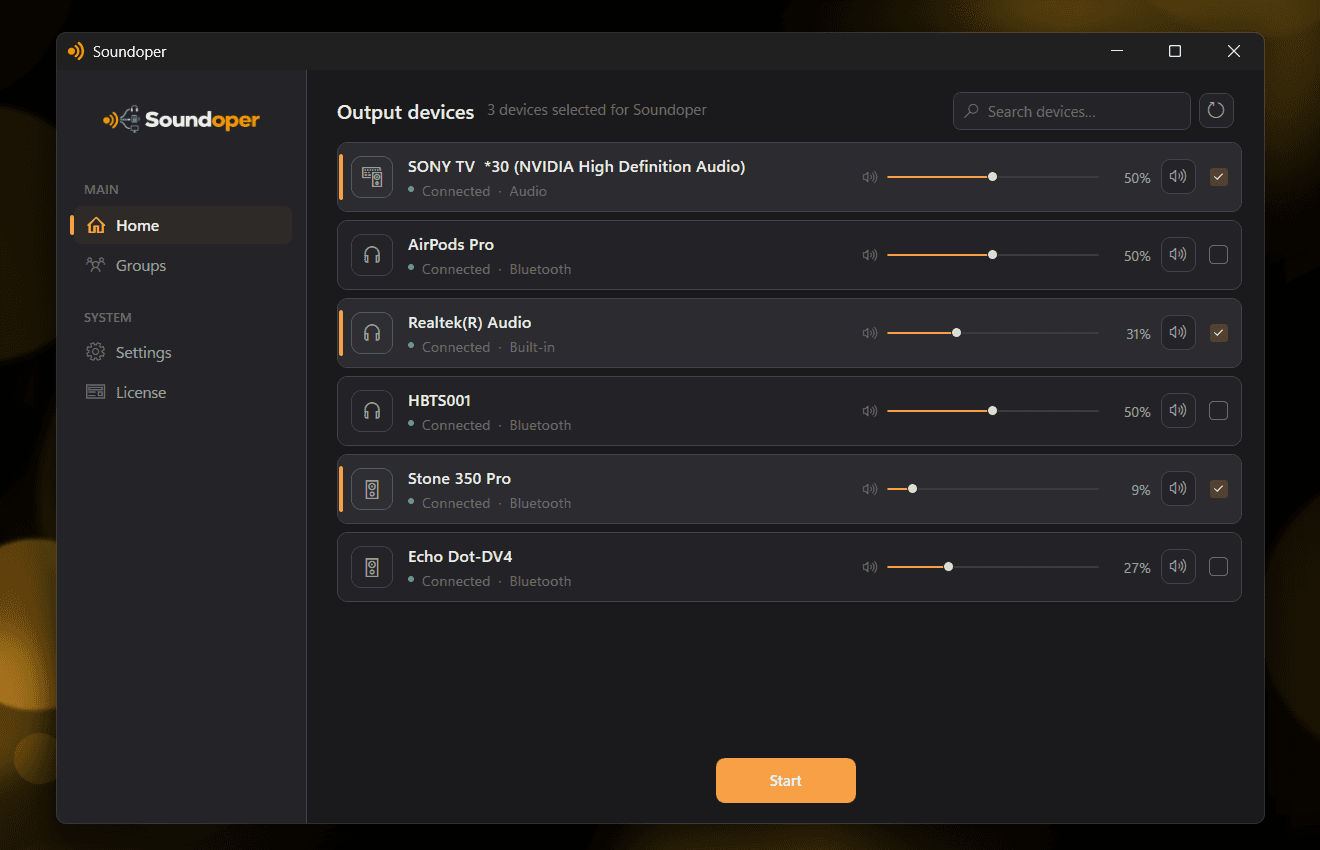
Real application interface
Simple by design
The hard part stays under the hood.
Your workflow stays focused on devices, levels, groups, and listening.
Pick your outputs
Choose the connected playback devices you want Soundoper to route together.
Tune each device
Control volume and mute per output, with a master level for the whole listening session.
Save listening groups
Keep recurring device combinations ready so you do not need to rebuild the same setup.
Built around real Windows devices
Mix the outputs your setup actually uses.
Soundoper works with playback endpoints Windows already exposes. Build a larger setup with wired, USB and display outputs. Up to two of the selected outputs can be Bluetooth.
Use up to two Bluetooth outputs inside a larger mixed setup
Supported as regular Windows playback outputs
Wired or USB playback devices
Displays exposed by Windows as audio outputs
From the journal
Windows 11 audio guides.
Practical answers for multi-device audio, Bluetooth, headphones, and troubleshooting.
Get started
Hear your setup together.
Try the full app free for 7 days. No credit card required.