

Why Bluetooth Speakers Are Out of Sync on Windows and How to Fix It
Bluetooth speakers playing out of sync on Windows? Here's why it happens, what you can do about it, and which solutions actually help.
The Short Answer
Bluetooth speakers often play out of sync because different Bluetooth connections have different latency. This is a hardware and protocol limitation: not something any software can completely eliminate. However, you can reduce the problem by using devices with similar latency characteristics, using wired connections where possible, or choosing software like Soundoper that actively coordinates selected outputs while keeping additional processing bounded.
Why This Happens
Bluetooth audio works by encoding audio, transmitting it wirelessly, and decoding it on the speaker side. Each step adds a small delay. The total delay depends on:
- Bluetooth implementation: A newer version alone does not guarantee lower audio latency
- Audio codec: SBC, AAC, aptX, and LDAC have different latency profiles
- Device hardware: Different speakers have different processing times
- Interference: Wireless congestion can add variable delay
When two Bluetooth speakers have different latencies, they play the same audio at slightly different times. Even a 20-30ms difference is perceptible as an echo effect.
What Makes It Worse
- Using two speakers with different Bluetooth versions or codecs
- Distance from the PC to each speaker
- Wi-Fi and Bluetooth sharing the 2.4GHz band
- Multiple Bluetooth devices connected simultaneously
- Some software adding additional processing latency
What You Can Do
1. Use Matching Devices
If possible, use two of the same Bluetooth speaker model. Same hardware, same codec, same latency: they'll be more likely to sync.
2. Use Wired + Bluetooth
Using a wired output avoids a wireless link on that device, but the Bluetooth speaker can still play later because of device buffering and decoding. Test both outputs together.
3. Keep Speakers Close to the PC
Reducing the Bluetooth distance can reduce latency variation. Place both speakers at similar distances from your PC.
4. Use a Single Bluetooth Speaker Group
Some speaker brands (JBL, Sony, Bose) offer built-in speaker grouping that handles synchronization at the hardware level. This only works within compatible same-brand models.
5. Minimize Additional Software Latency
If you're using audio routing software, choose one that adds minimal processing delay. VoiceMeeter, for example, adds some processing that can increase latency. Soundoper coordinates selected outputs on a shared playback timeline and includes latency-handling logic for the routed path. Bluetooth hardware can still add device-specific delay that software cannot fully control.
The Honest Answer
True synchronization between different Bluetooth devices at the software level isn't fully achievable: the latency is inherent to the Bluetooth protocol and device hardware. The best results come from:
- Using the same speaker model for both outputs
- Using speaker brand grouping features
- Minimizing software processing in the audio chain
- Accepting a small delay when using mixed device types
Practical Setup Check
Test each speaker individually, move closer to the PC, reduce radio interference, and compare a short speech sample. Hardware buffering can still create audible differences.
Soundoper Interface
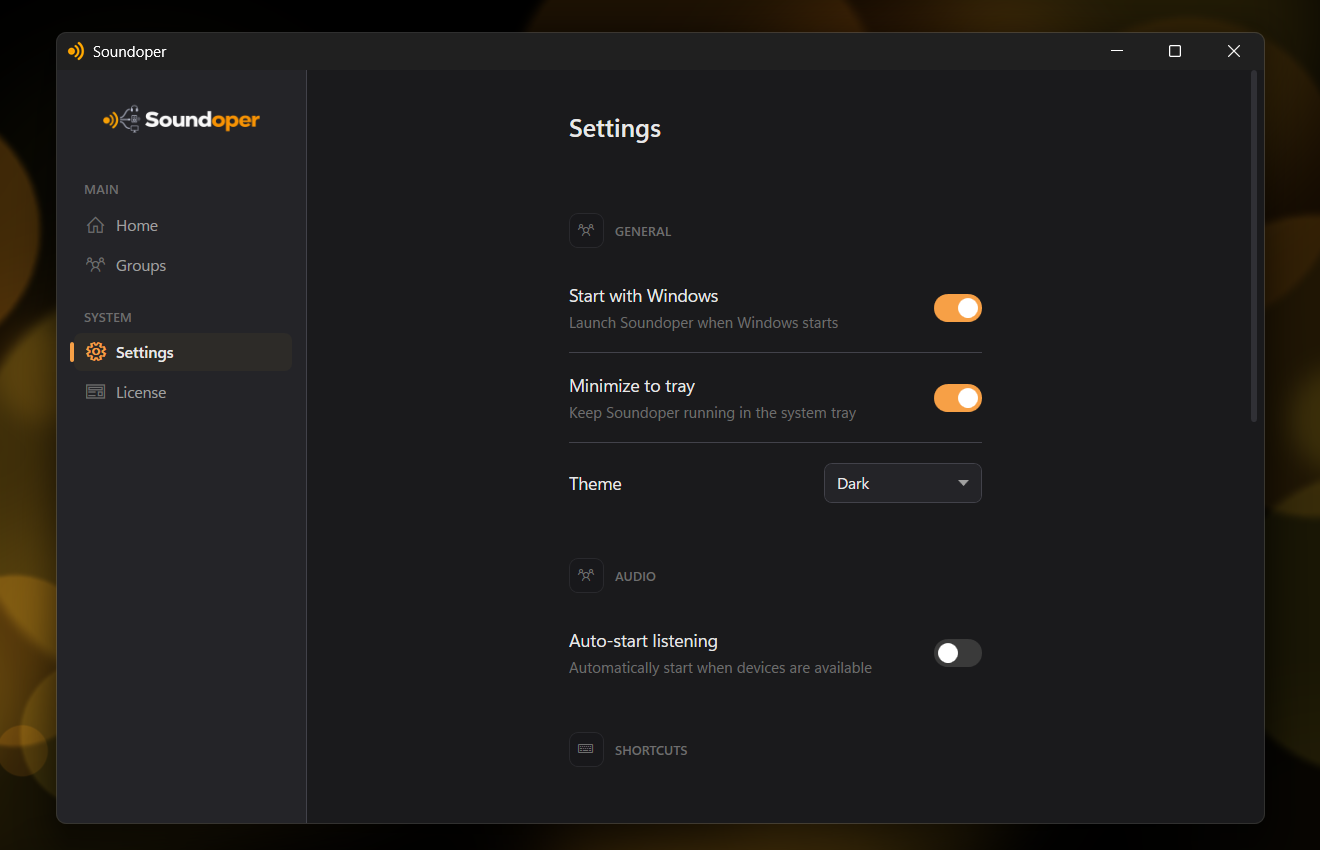
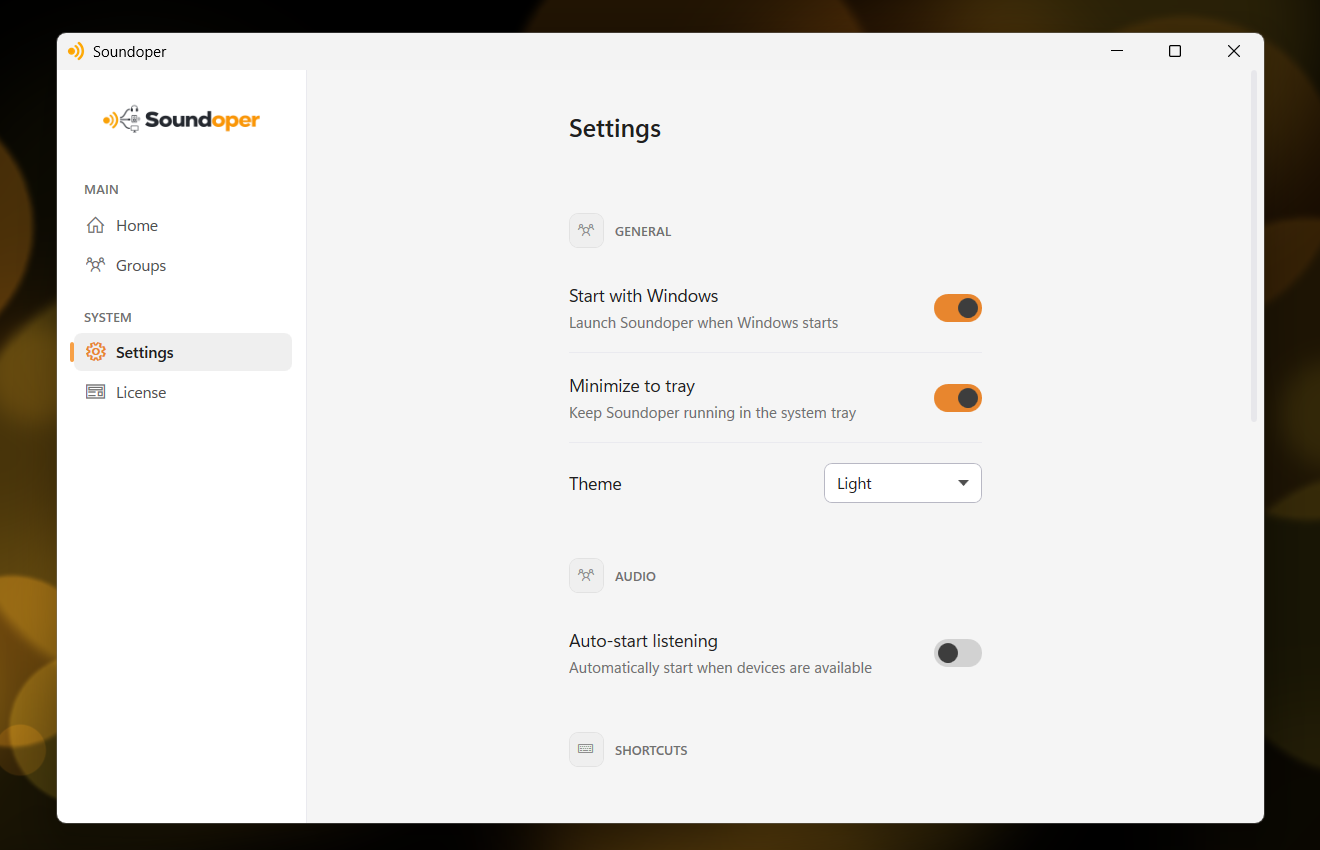
Illustrative screenshot from the actual Soundoper application. Connected devices and interface settings may vary.
Conclusion
Bluetooth audio sync issues on Windows are a combination of hardware latency, codec differences, and wireless characteristics. No software can guarantee perfect acoustic alignment across every Bluetooth device, but coordinated output timing plus similar hardware can reduce the gap.
Try Soundoper free for 7 days: test your exact Bluetooth pair and hear how the coordinated output path behaves on your hardware.