

How to Connect Multiple Bluetooth Speakers to a Windows PC
Can Windows connect to multiple Bluetooth speakers at the same time? Here's how to use multiple Bluetooth speakers and play audio through all of them.
The Short Answer
Windows can pair with multiple Bluetooth devices, but it typically only sends audio to one Bluetooth output at a time. To play audio through multiple Bluetooth speakers simultaneously, you need either your speakers' built-in grouping feature (if available) or multi-device audio software like Soundoper.
Windows 11 Shared Audio: When It Applies
Microsoft has introduced Shared audio for two compatible Bluetooth LE Audio accessories on selected Windows 11 PCs and builds. It is not a general replacement for mixed Bluetooth, USB, wired, and HDMI output routing. Availability depends on your Windows build, PC audio hardware, drivers, and accessories. On supported devices, check Quick Settings for a Shared audio control. See Microsoft's Shared audio preview announcement for eligibility and limitations.
The Reality of Bluetooth on Windows
Windows handles Bluetooth audio differently than Bluetooth for accessories like keyboards and mice. While you can pair multiple Bluetooth audio devices, ordinary default audio playback typically uses one active output.
Some newer Windows 11 PCs support Shared audio with compatible Bluetooth LE Audio accessories. This is distinct from general classic Bluetooth audio mirroring.
What About Speaker Brand Apps?
Some Bluetooth speaker brands offer their own apps or built-in features for grouping speakers:
- JBL Connect / PartyBoost: group compatible JBL speakers
- Sony Party Link: link compatible Sony speakers
- Bose SimpleSync: connect compatible Bose devices
- Auracast: new Bluetooth standard for audio sharing (limited device support)
These work well within the same brand, but they have limitations:
- Only work with compatible models from the same brand
- Limited range of supported devices
- Not available for mixing brands (e.g., a JBL speaker + a Sony speaker)
- Not all Windows PCs support the required Bluetooth profiles
How to Use Multiple Bluetooth Speakers on Windows
Method 1: Same-Brand Grouping
If your speakers support it:
- Put both speakers into pairing/grouping mode (check your speaker's manual)
- Pair them to Windows
- Select the grouped pair as your audio output
Method 2: Stereo Mix + Repeater
This requires one speaker as the default output and routes the captured audio to the second:
- Set one Bluetooth speaker as default output
- Enable Stereo Mix in Windows Sound settings
- Use an audio repeater to send Stereo Mix to the second speaker
Limitation: Adds latency, which can cause the two speakers to be noticeably out of sync.
Method 3: Soundoper
Soundoper can route to Bluetooth playback devices that Windows exposes as audio outputs. The current app allows up to two selected Bluetooth outputs at once:
- Pair both Bluetooth speakers to Windows
- Open Soundoper
- Select both speakers
- Play audio: both receive the same stream
There is no same-brand grouping requirement inside Soundoper. Pair the devices with Windows, select up to two confirmed Bluetooth outputs, and start the listening session.
Bluetooth Audio Sync
One common issue with multiple Bluetooth speakers is synchronization: they may play at slightly different times due to different Bluetooth latencies. This is inherent to how Bluetooth audio works and varies by device.
Soundoper uses synchronization and latency-handling logic to keep selected outputs aligned, but Bluetooth endpoints can still have device-specific transport and codec behavior. If synchronization is critical, test your exact devices during the free trial.
Practical Setup Check
Pair the speakers in Settings → Bluetooth & devices and verify both are recognized as Windows playback outputs before using a routing app.
Soundoper Interface
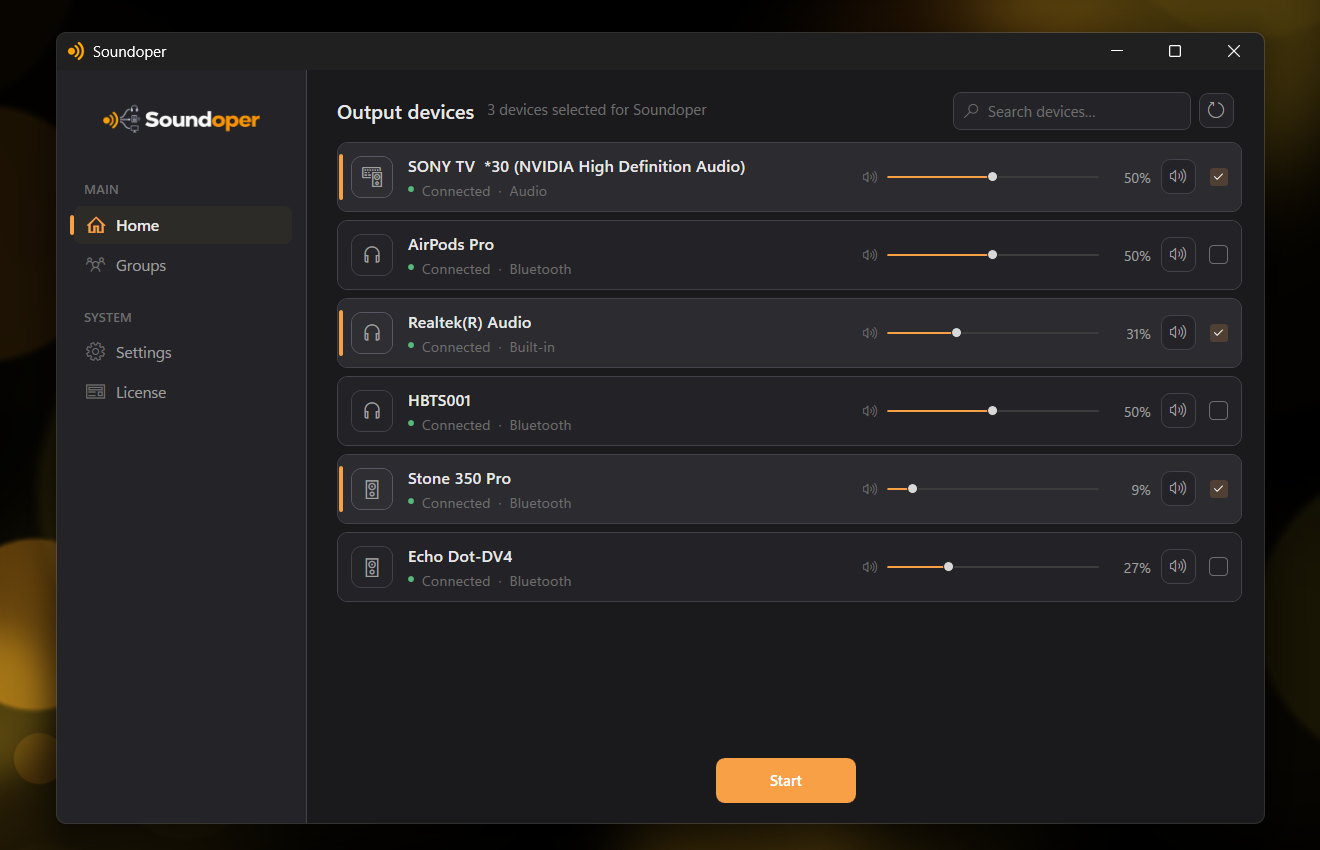
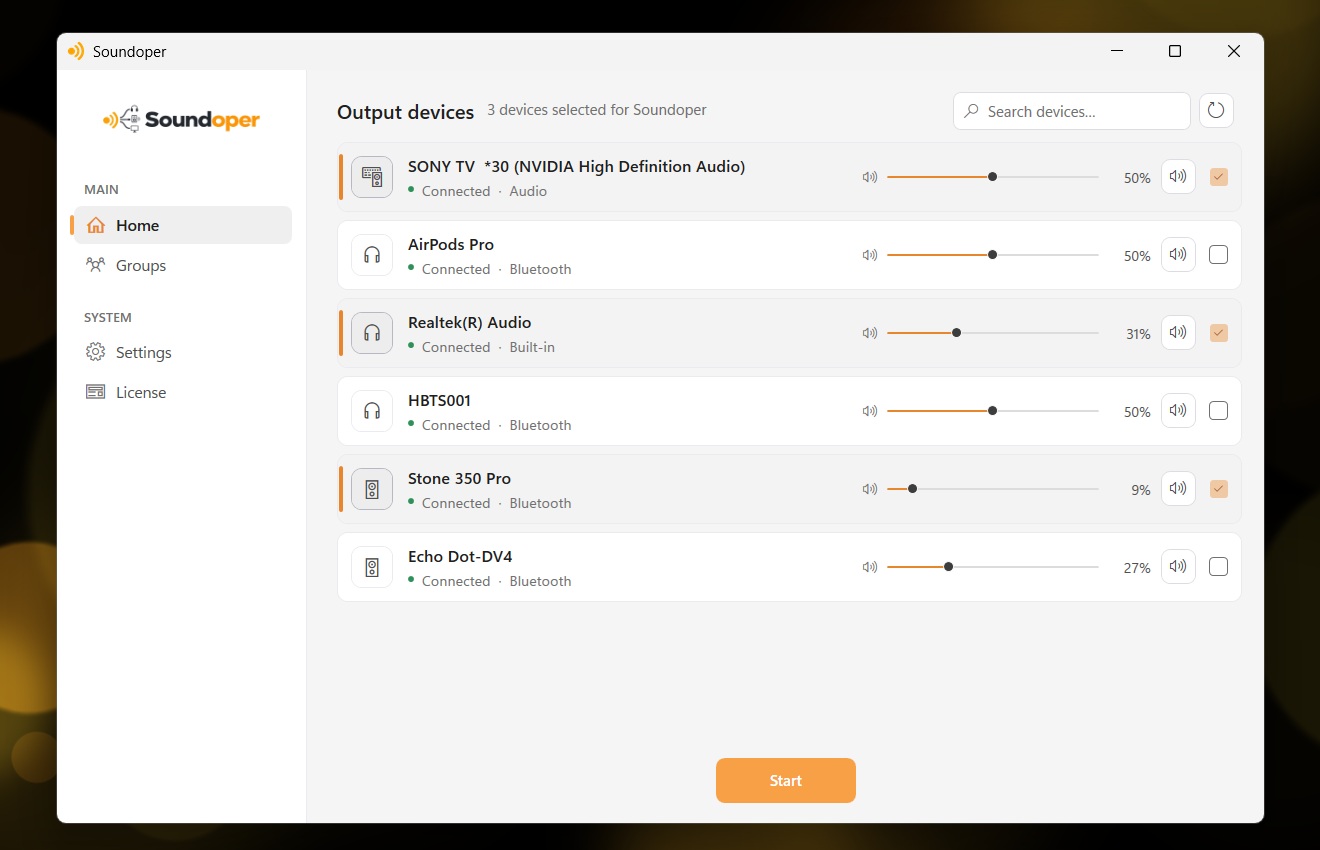
Illustrative screenshot from the actual Soundoper application. Connected devices and interface settings may vary.
Conclusion
Windows does not provide a universal built-in solution for every Bluetooth speaker combination. Same-brand grouping works within compatible models, but for true multi-speaker audio without brand restrictions, Soundoper provides a simpler solution.
Try Soundoper free for 7 days: pair your Bluetooth outputs with Windows, select up to two in Soundoper, and test your setup.