

How to Play Audio Through Two Bluetooth Headphones on Windows
Want to share audio through two Bluetooth headphones on Windows? Here are the methods for dual Bluetooth headphone output.
The Short Answer
Traditional Windows default playback does not generally send audio to two classic Bluetooth headphones at once, although some compatible Windows 11 configurations offer Shared audio for Bluetooth LE Audio accessories. To share audio between two pairs of Bluetooth headphones, you need either a Bluetooth transmitter with dual output, same-brand headphone pairing features, or multi-device audio software like Soundoper.
Windows 11 Shared Audio: When It Applies
Microsoft has introduced Shared audio for two compatible Bluetooth LE Audio accessories on selected Windows 11 PCs and builds. It is not a general replacement for mixed Bluetooth, USB, wired, and HDMI output routing. Availability depends on your Windows build, PC audio hardware, drivers, and accessories. On supported devices, check Quick Settings for a Shared audio control. See Microsoft's Shared audio preview announcement for eligibility and limitations.
The Problem
Two people. Two pairs of Bluetooth headphones. One Windows laptop. You both want to listen to the same movie, music, or video call: but Windows only sends Bluetooth audio to one device at a time.
This is a common situation: sharing a movie on a plane, listening to music together, or both joining the same video meeting from one computer.
Your Options
Option 1: Bluetooth Transmitter with Dual Output
A dedicated Bluetooth transmitter can send audio to multiple headphones:
- Buy a Bluetooth transmitter that supports dual or multi-point output (look for "dual-link" or "multi-point" in the specs)
- Connect the transmitter to your PC's audio output (3.5mm or USB)
- Pair both headphones to the transmitter
Pros: True simultaneous Bluetooth audio to both headphones. Cons: Extra hardware, extra cost, audio quality depends on the transmitter, separate from your PC's Bluetooth.
Option 2: Same-Brand Headphone Features
Some headphone brands support linking or sharing between models:
- Apple: Audio Sharing between AirPods (requires Apple devices, not Windows)
- Bose: SimpleSync between compatible models
- Some gaming headsets: Built-in dual-link features
Limitation: Only works within compatible models from the same brand.
Option 3: One Wired + One Bluetooth
If one pair of headphones is wired:
- Plug the wired headphones into the 3.5mm jack
- Connect the Bluetooth headphones via Windows Bluetooth
- Use software like Soundoper to send audio to both simultaneously
Option 4: Soundoper
Soundoper routes the same audio to selected Windows playback outputs. The current app supports up to two selected Bluetooth outputs at the same time:
- Connect both pairs of Bluetooth headphones to Windows
- Open Soundoper
- Select both headphones
- Play audio: both receive the same sound
This also works with mixed setups such as wired or USB headphones alongside Bluetooth. Non-Bluetooth outputs are not part of the two-Bluetooth selection cap.
The Sync Challenge
Bluetooth headphones may play audio at slightly different times due to varying Bluetooth latencies. Bluetooth endpoints can still differ in codec, transport, and device-side latency. Soundoper includes synchronization and latency-handling logic, but results can vary by hardware, so test the exact headphone pair during the trial.
This is a Bluetooth hardware limitation, not specific to any software solution.
Practical Setup Check
Pair both headphones in Settings → Bluetooth & devices, confirm both in System → Sound, then test each headset individually before selecting both.
Soundoper Interface
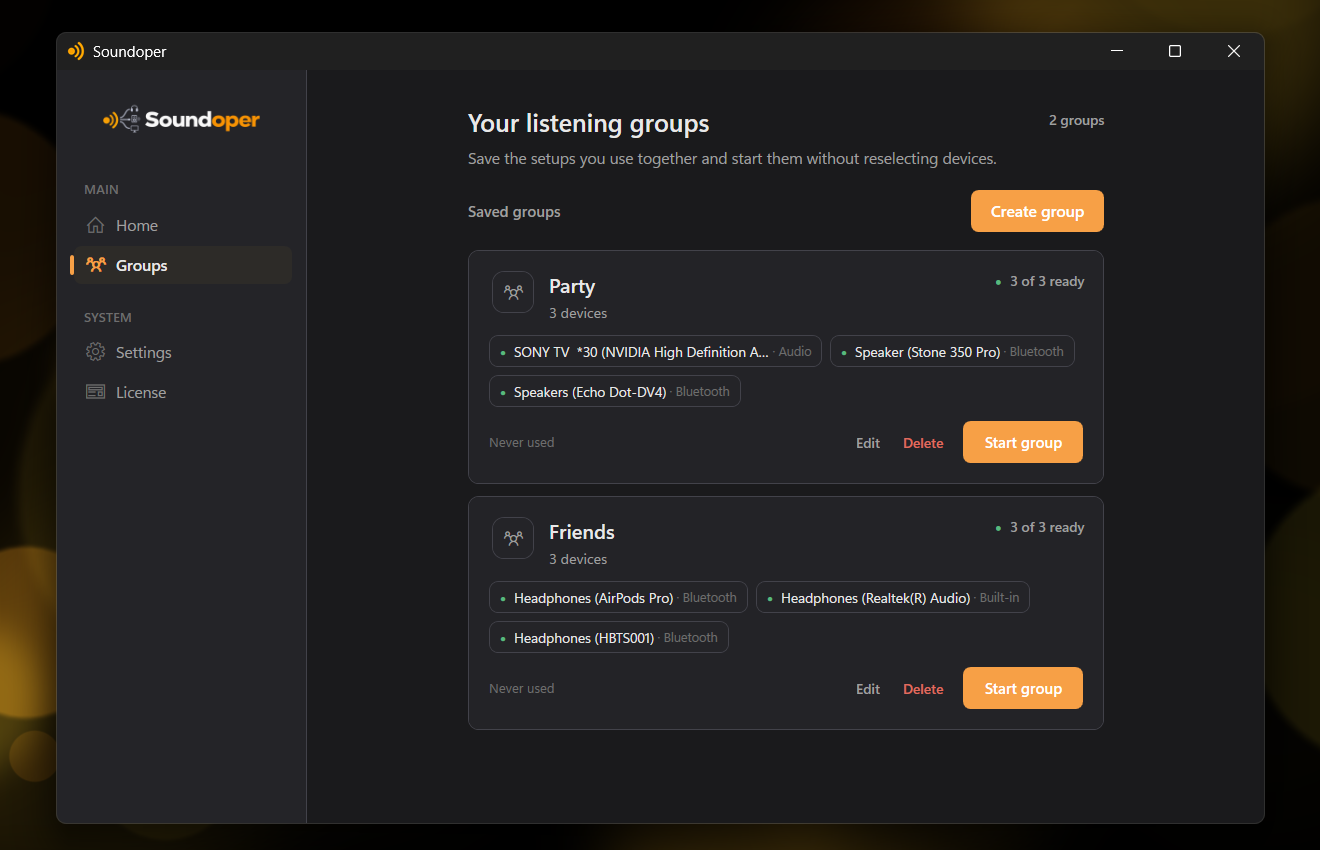
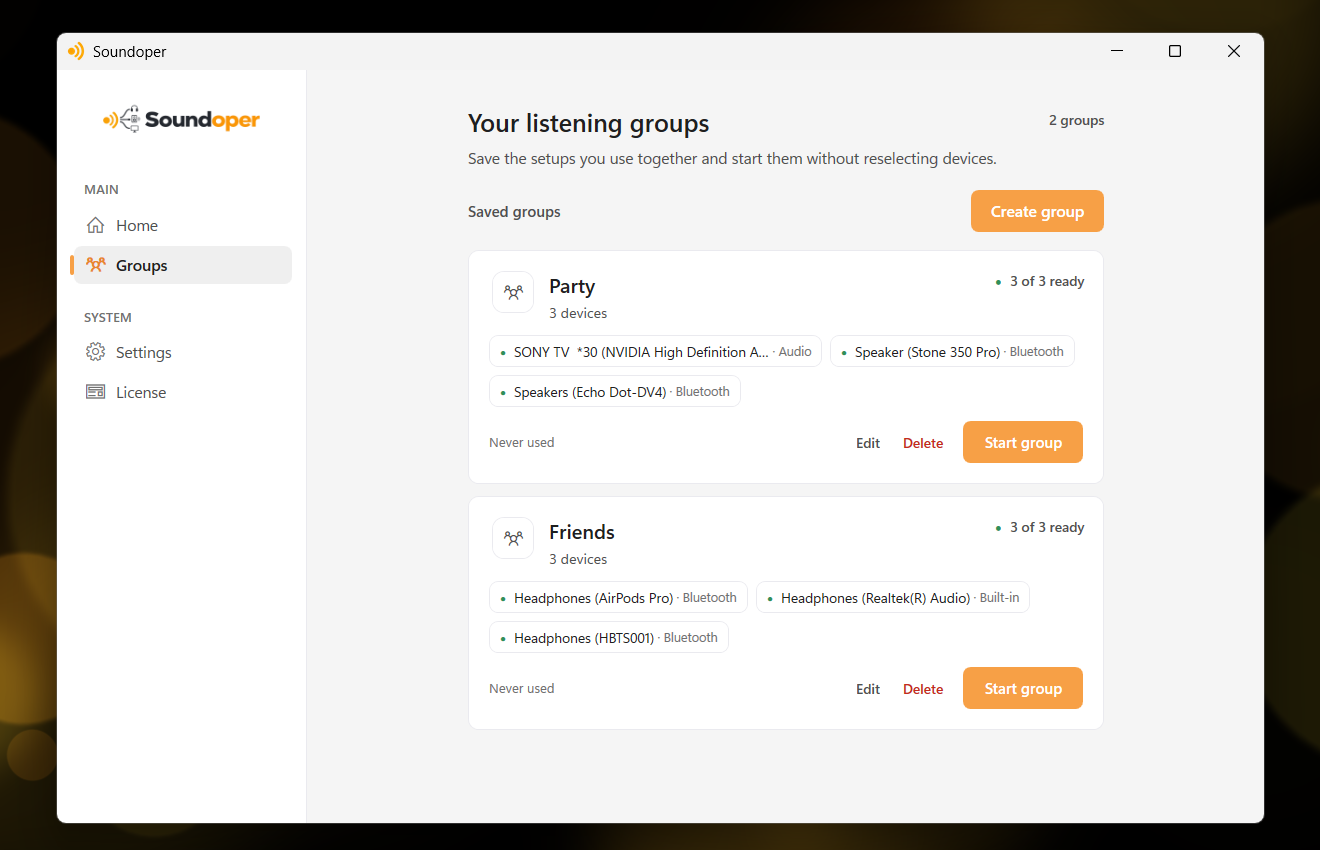
Illustrative screenshot from the actual Soundoper application. Connected devices and interface settings may vary.
Conclusion
Playing audio through two Bluetooth headphones on Windows requires workarounds since Windows doesn't natively support it. A dual-output Bluetooth transmitter is one option, and multi-device audio software like Soundoper can handle the combination without extra hardware.
Try Soundoper free for 7 days.